
Increase battery life on Windows 11: 10 tips and settings that work
Why does your battery drain too quickly on Windows?
Whether you're traveling, working remotely or in a meeting, a battery that runs out in a few hours is a real handicap. Yet Windows 11 is full of options and settings to optimize your laptop's battery life. Discover in this guide all the tips to make your battery last longer without sacrificing performance.
KAR POWER FASTER: the smart software that doubles your battery life on Windows
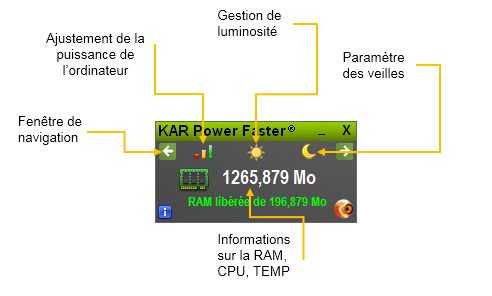
If classic Windows settings are not enough to give you the battery life you need, there is an advanced solution: KAR Power Faster. This next-generation energy saver widget is specially designed to radically extend your computer's battery life on Windows while boosting its performance.
Unlike standard settings, this software acts in real time completely automatically, without requiring any intervention on your part:
- It doubles battery life of your laptop, notebook, ultrabook or tablet on Windows by finely adjusting energy consumption.
- It actively regulates temperature of the processor to prevent overheating, thus preserving internal components and extending your machine's lifespan.
- It optimizes RAM management by automatically freeing unused resources, ensuring flawless smoothness even on modest configurations.
- It intelligently manages processor clock speed by adapting it in real time to your actual needs, thus avoiding any energy waste.
The software interface offers total transparency on its action:
- View in real time the amount of RAM used and that automatically freed by KAR Power Faster.
- Check your processor's current clock speed.
- Monitor CPU temperature, which the software constantly strives to reduce for optimal operation.
For advanced users, KAR Power Faster also offers fine configuration options: personalized screen brightness management, automatic sleep configuration, or manual processor frequency adjustment for even greater energy savings.
Discover KAR Power Faster and download it now from the official website: https://www.ia-kar.com/en/laptop-battery.php
Why is your battery life on Windows crucial?
Understanding the issues related to your laptop's battery is the first step to better optimizing it. Good battery life offers you:
- Preserved productivity: no more untimely interruptions during meetings or while traveling.
- Real mobility: work wherever you want without being tied to a power outlet.
- Extended lifespan: a well-maintained battery lasts longer and delays replacement.
- Financial savings: fewer battery replacements means fewer expenses.
- An eco-friendly gesture: reducing energy consumption also reduces your carbon footprint.
The 10 most effective methods to improve battery life on Windows 11
Here are proven techniques to optimize your computer's battery on Windows 11. Apply them now to see a clear improvement.
1. Use Windows energy recommendations
Windows 11 includes an analysis tool that suggests personalized settings to reduce your energy consumption.
How to do it:
- Go to Start > Settings > System > Power & battery.
- Click on Energy recommendations.
- Select Apply all or adjust settings individually.
2. Enable battery saver
Battery saver automatically manages system processes and energy use for an optimal balance between performance and battery life.
How to do it:
- In Settings > System > Power & battery.
- Enable battery saver manually or set an activation threshold (e.g. 20%).
- Click the Battery icon in the taskbar for quick access.
3. Enable adaptive power saving mode
Microsoft is testing a new adaptive power saving mode that activates and deactivates automatically based on your machine's needs.
How to do it:
- Download the ViVeTool utility from GitHub.
- Run the command:
vivetool /enable /id:56401475 - The Adaptive option will appear in power settings.
4. Choose the appropriate power mode
Windows 11 offers several power modes that directly affect energy consumption.
Recommended configuration:
- In Settings > System > Power & battery.
- Under Power mode, choose Best power efficiency for battery use.
- Switch to Best performance only when plugged in.
5. Reduce screen brightness
The screen is one of the most energy-intensive components of your computer. Lowering brightness can gain precious minutes of battery life.
How to do it:
- In Settings > System > Display > Brightness.
- Uncheck Change brightness automatically if the option appears.
- Use the slider to set a comfortable but economical brightness level.
6. Reduce shutdown and sleep delays
A screen that stays on too long or a PC that takes too long to sleep wastes energy unnecessarily.
Recommended configuration:
- In Settings > System > Power & battery > Screen and sleep.
- For battery power, set screen shutdown to 5 to 10 minutes.
- Set sleep mode to 10 to 20 minutes.
4 complementary strategies for a top battery on Windows
7. Limit battery charge to 80%
Contrary to popular belief, it is not good to keep your battery constantly at 100%. Micro-charging produces heat, the number one enemy of lithium-ion batteries.
- Enable smart charging mode via your manufacturer's utility: MyAsus, Dell Power Manager, Lenovo Vantage or in the BIOS.
- Set the charge threshold to 80% (or 60% if your PC stays plugged in permanently).
- This practice can extend your battery's lifespan by several months, or even years.
8. Disable unnecessary connections and peripherals
Wi-Fi, Bluetooth, location and connected peripherals consume energy even when not in use.
- Disable Wi-Fi and Bluetooth when you don't need them.
- Disable location in Settings > Privacy & security.
- Enable Airplane mode for a quick cut of all connections.
- Remove unused USB keys and other peripherals.
9. Use a dark theme (OLED screens)
If your laptop has an OLED screen, using a dark theme can significantly reduce energy consumption.
- In Settings > Personalization > Colors.
- Choose dark mode for the app and/or Windows.
- Black pixels on OLED screens are turned off, which saves energy.
10. Manage background apps
Some apps continue to run in the background and consume energy without you realizing it.
- In Settings > Apps > Installed apps.
- For each app, click the three dots > Advanced options.
- Under Background app permissions, select Never or Optimized by Windows.
How to maintain your battery long-term on Windows?
Beyond daily tips, here are some best practices to extend your battery's lifespan:
- Avoid extreme temperatures: heat is the enemy of lithium-ion batteries.
- Limit charge to 80% if your manufacturer allows it.
- Avoid full discharges: recharge before reaching 20%.
- Generate a battery report to monitor your battery's condition: open Command Prompt and type
powercfg /batteryreport. - Keep Windows up to date: updates often include power management improvements.
FAQ - Frequently asked questions about battery life on Windows
Is it true that you shouldn't leave your PC plugged in permanently?
Yes. Keeping a battery constantly at 100% accelerates its chemical aging. The ideal is to limit charge to 80% via manufacturer utilities.
Does power saving mode really slow down my computer?
Power saving mode reduces processor and graphics card performance to save energy. For office use, the difference is imperceptible. However, for video editing or gaming, it is preferable to disable this mode.
What is Windows 11's adaptive power saving mode?
It is a new mode being tested by Microsoft that activates and deactivates automatically based on your machine's energy needs, without reducing screen brightness.
How do I know if my battery is at end of life on Windows?
Generate a battery report by opening Command Prompt and typing powercfg /batteryreport. The report will indicate initial charge capacity and current capacity. If current capacity is below 80% of initial capacity, it is time to replace the battery.
Is KAR Power Faster compatible with Windows 11?
Yes, KAR Power Faster is fully compatible with Windows 11, Windows 10 and earlier versions. System requirements are very modest: 256 MB RAM, 1 GHz processor and 15 MB disk space are sufficient. The software is certified compatible with Microsoft Windows.
Read also : Laptop battery life