
Reduce your computer's energy consumption: 10 tips and Green IT solutions
Why does your computer consume too much energy?
According to ADEME, IT device consumption represents 14.5% of total household electricity use. A desktop computer left on permanently can consume up to $215 in electricity per year, 10 times more than the average value. Yet there are simple and effective solutions to reduce this consumption without sacrificing performance. Discover in this guide all the tips to save energy with your computer.
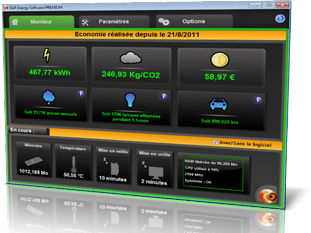
KAR Energy Software: the Green IT software that reduces your PC consumption by up to 48%
If manual settings are not enough to reduce your energy bill, there is an automated and powerful solution: KAR Energy Software. This energy management software reduces the electricity consumption and carbon footprint of your computer (desktop or server) by up to 48%.
Unlike standard Windows settings, this software works in depth in 4 complementary ways:
- RAM consumption optimization: the software automatically frees unused RAM to reduce component load.
- Sleep mode for unused CPU components: unused processor parts are put to sleep to save energy.
- Fine-tuned power management: consumption is adapted in real time to your machine's actual needs.
- Intelligent sleep mode: the computer is put to sleep during prolonged inactivity, with insomnia problem resolution, and can be woken automatically.
The concrete benefits of KAR Energy Software are numerous:
- Up to 48% reduction in your IT fleet's energy consumption.
- Extended hardware lifespan through intelligent home automation.
- Increased battery life for laptops.
- Computer acceleration up to 5 times faster.
- Faster startup time up to 4 times faster.
- Lower processor temperature by 10 °C on average.
- Automatic wake-up via Wake On Timer and Wake On LAN.
- No Internet connection required to operate.
The software adapts to actual RAM and processor power consumption for maximum efficiency. It is particularly appreciated by professionals: "Using KAR Energy Software improves performance and extends component lifespan", one user reports. A technology teacher adds: "This software allows us to use again computers we thought were obsolete."
Discover KAR Energy Software and calculate your return on investment now: https://www.ia-kar.com/en/software-energy-saver.php
Why reduce your computer's energy consumption?
Understanding your computer's energy issues is the first step to better managing them. Reducing consumption allows you to:
- Reduce your electricity bill: a desktop PC consumes on average 219 kWh/year (approximately $27/year), compared to 186 kWh/year for an LCD TV.
- Reduce your carbon footprint: a computer generates on average 250 kg of CO2 per year.
- Extend your hardware lifespan: sleep mode cools the most stressed circuits.
- Contribute to the ecological transition: computing represents a significant share of our energy consumption.
The 10 most effective methods to reduce your computer's energy consumption
Here are proven techniques to optimize your computer's energy consumption. Apply them now to see a clear improvement.
1. Enable power saving mode
Power saving mode is the simplest and most effective action to reduce your consumption.
How to do it:
- On Windows: Settings > System > Power & battery.
- Select Best power efficiency mode.
- You can reduce your consumption by 10 to 40%.
2. Reduce sleep mode delay
Power saving mode allows you to configure sleep mode after a period of inactivity.
Recommended configuration:
- Set screen shutdown to 5 to 10 minutes.
- Set sleep mode to 10 to 15 minutes.
- Sleep mode cools circuits and extends your computer's lifespan.
3. Reduce screen brightness
Computer screens are getting larger and therefore consume more energy.
How to do it:
- In Settings > System > Display.
- Reduce brightness to the most comfortable level.
- Lowering brightness reduces eye strain and consumption.
4. Turn off unused devices
Computers, smartphones and tablets continue to consume energy even in standby.
Best practices:
- Shut down your computer completely at the end of the day.
- Unplug unused chargers and peripherals.
- Even when turned off but not unplugged, a computer consumes approximately 5 watts.
5. Use a black screensaver
Animated screensavers prevent the computer from sleeping and unnecessarily consume energy.
Configuration:
- Choose a black screensaver or "None".
- Prefer screen sleep over a screensaver.
- Combine sleep settings with a black screensaver to minimize consumption.
6. Use a smart power strip
Equipment in standby continues to consume energy; this is called "phantom consumption".
Solution:
- Use smart power strips for all your equipment (computer, printer, scanner).
- Cut power with a single action at the end of the day.
- Save up to 30 W per device in standby.
4 complementary strategies for controlled consumption
7. Choose a laptop
A laptop's electricity consumption is on average 50 to 80% lower than a desktop computer.
- A laptop used 3h13 per day consumes approximately 22 kWh per year (approximately $6).
- A desktop PC consumes on average 219 kWh per year (approximately $27).
- For mobile use, a laptop is always more economical.
8. Choose efficient hardware
More efficient computers and servers consume less energy than older models.
- When purchasing, prioritize devices designed to be energy efficient.
- Laptops are often more economical than desktop computers.
- Check energy labels and Green IT certifications.
9. Turn off unused screens
Screens also consume energy even when not in use.
- Configure automatic screen shutdown after a period of inactivity.
- Manually turn off screens during long breaks.
- A turned-off screen means immediate savings.
10. Shut down and restart regularly
Shutting down and restarting your computer allows your hardware to "rest" and therefore last longer.
- Regular restarts allow updates to be installed.
- Updating drivers and the system often improves energy management.
- Small eco-friendly habits lead to big savings!
How to calculate your computer's energy consumption?
To manage your consumption, it is useful to know how to calculate it. A computer's annual consumption is measured in kilowatt-hours (kWh).
Calculation formula: Annual consumption (kWh) = Power in watts × Hours of use / 1000
Examples:
- A 200-watt desktop computer used 3 hours per day consumes approximately 219 kWh/year.
- A 60-watt laptop used 3 hours per day consumes approximately 65.7 kWh/year.
- A desktop computer left in sleep mode 3 hours per day can generate approximately 30.75 kWh/year of additional consumption.
FAQ - Frequently asked questions about IT energy savings
Does power saving mode really reduce my bill?
Yes. Once your computer is in power saving mode, you can reduce your consumption by 10 to 40%. On a base of $215 per year, this represents savings of $22 to $86.
Does a computer turned off but plugged in still consume?
Yes. Even in standby, a computer has a power of approximately 5 watts. If it is turned off but not unplugged, it will continue to consume energy. This is why smart power strips are recommended.
What is the average consumption of a laptop?
According to ADEME, a laptop used 3h13 per day consumes approximately 22 kWh per year, costing around $6 per year. Its low power, often around 60 watts, makes it a very economical device.
What is Green IT?
Green IT, or sustainable computing, refers to all practices aimed at reducing the environmental impact of information technology. This includes optimizing energy consumption, extending equipment lifespan and reducing electronic waste.
Is KAR Energy Software compatible with all computers?
KAR Energy Software is compatible with desktop computers and servers running Windows. The software requires no Internet connection to operate and adapts to each machine's actual consumption. It is particularly recommended for businesses wishing to reduce their energy bill and carbon footprint.
Read also : Desktop PC electricity consumption