
Home / Blog / Accessible IT
How to operate a computer by head movement and voice
Navigating Computers Through Alternative Input Methods
Modern computing relies heavily on traditional peripherals such as a standard hand-operated mouse and a mechanical keyboard. However, these physical tools can present significant barriers for individuals with motor impairments, repetitive strain injuries, or physical disabilities. Exploring alternative interaction methods opens up new possibilities for digital inclusion. When a person cannot easily manipulate a standard mouse, looking at ways to operate a computer by head movement, voice commands, or specialized touch interfaces becomes essential for daily productivity and communication.
Implementing these adaptive setups requires careful planning, proper software configuration, and an understanding of how different assistive technologies interact with your operating system. Whether you are setting up a workstation for yourself, a family member, or a client, knowing the right combination of tools ensures a smooth and frustration-free experience. Solutions like KAR Disability offer comprehensive support for users who require alternative input devices to interact with their desktop environments effectively.
Understanding the underlying principles of alternative interaction helps users make informed decisions about their hardware and software purchases. Many individuals struggle because they attempt to use generic equipment that is not optimized for custom mapping. By pairing intelligent tracking software with robust operating system adjustments, users can achieve remarkable precision. This level of customization allows individuals to browse the internet, draft lengthy documents, manage emails, and execute complex administrative tasks entirely on their own terms, fostering a deep sense of independence and self-reliance in both personal and professional spheres.
The Lasting Challenge of Physical Computer Accessibility
For millions of users worldwide, the standard physical layout of a desktop computer remains a major hurdle. Standard input devices assume a baseline level of fine motor control, upper body mobility, and physical stamina that simply does not apply to everyone. When repetitive strain or motor disabilities make standard peripherals painful or impossible to use, individuals face a stark choice: abandon digital tools entirely or find reliable alternative ways to interact with their screens.
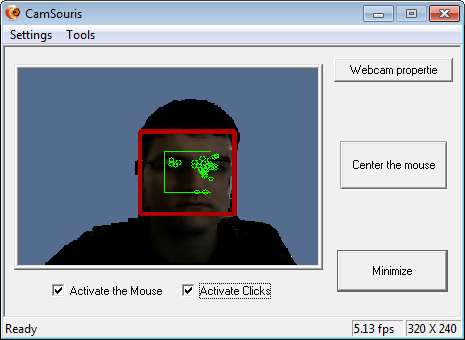
The challenge goes beyond simply plugging in a new device. Operating systems must interpret signals from webcams tracking head gestures, microphones capturing spoken text, or touch screens configured for low-mobility touches. Without integrated software layers that translate these unique signals into standard mouse clicks and keyboard strokes, advanced hardware remains underutilized. Furthermore, users often need guidance during the installation phase to ensure that tracking cameras and microphone sensitivities are calibrated correctly for their specific physical environment and lighting conditions.
Another persistent obstacle is user fatigue. Staring at a monitor while maintaining specific head postures can lead to muscular strain if the software sensitivity is not tuned correctly. To mitigate this, assistive technology developers incorporate features such as dwell clicking, adjustable acceleration curves, and voice-activated shortcut macros. These features drastically reduce the physical effort required to perform repetitive interface tasks. When configuration is handled thoughtfully, users experience far less physical exhaustion at the end of a busy workday, allowing them to engage in hobbies or relax without discomfort.
Comparison of Alternative Computer Input Technologies
Choosing the optimal assistive setup depends on user mobility, lighting conditions, and required precision. The table below compares the primary input technologies for Windows environments:
| Input Method | Hardware Required | Latency | Key Advantage & Best Use |
|---|---|---|---|
| Webcam Head Tracking | Standard 1080p webcam (60 FPS recommended) | < 30 ms | Full hands-free cursor navigation without wearable sensors. Best for motor impairments. |
| Voice Dictation & Control | Directional noise-canceling microphone | 150–250 ms | High-speed text entry & macros. Ideal for document drafting, emails, and system commands. |
| Infrared Eye Tracking | Dedicated IR sensor bar | < 20 ms | Zero head or neck movement required. Recommended for severe mobility limits (ALS, quadriplegia). |
| Multimodal Hybrid (KAR + Voice) | Webcam + headset microphone | Real-time | Combines agile pointer movement with fast speech typing for a complete, low-fatigue workflow. |
Position your primary light source in front of your face rather than behind you. Strong backlighting casts shadows that can degrade webcam facial recognition and cause pointer inaccuracy.
Step-by-Step Guide to Setting Up Alternative Input Controls
Configuring a computer for alternative input requires a methodical approach. By following these structured steps, you can transition smoothly from standard peripherals to head tracking, voice control, or specialized touch options.
1. Assess the Physical Needs and Environment
Begin by evaluating the user's range of motion, physical comfort, and environmental factors such as desk lighting and seating position. Understanding whether head movement, vocal clarity, or minimal touch gestures will be the primary control method dictates the choice of hardware and software tools. Proper lighting is especially critical if you plan to use a webcam for tracking facial gestures, as shadows or excessive glare can interfere with accurate cursor placement.
2. Install and Calibrate the Software
Once you have selected your assistive software package, follow the system prompts to install the application. During this stage, you will typically run a calibration wizard. This wizard maps the user's neutral head position, establishes the boundaries of screen movement, or tests microphone levels. Take your time during calibration to ensure the software responds naturally to subtle movements without requiring excessive physical exertion.
3. Integrate Voice Recognition Tools
To complement physical movement tracking, incorporate dictation and command software. Tools like Dragon NaturallySpeaking allow users to dictate text, execute shortcuts, and navigate applications entirely through spoken words. Spend time training the voice profile to recognize the user's unique vocal patterns, cadence, and specific command vocabulary for optimal accuracy.
4. Review System Documentation and Support
Assistive technology setups often require fine-tuning as the user adapts to the new interface. Keep your documentation close at hand to reference advanced settings, troubleshooting tips, and calibration shortcuts. Familiarizing yourself with these resources ensures you can quickly resolve minor tracking drifts or voice recognition errors without interrupting workflow.
5. Test and Adjust Daily Workflows
Perform test runs across common applications such as web browsers, email clients, and word processors. Pay attention to fatigue levels and adjust cursor speeds, dwell-click timers, or voice command triggers accordingly. Gradual adjustments over the first few days will lead to a more comfortable, sustainable, and personalized computing experience.
6. Maintain and Optimize Hardware Performance
Ensure that your webcam lens remains clean, your microphone is positioned at a consistent distance from your mouth, and your operating system receives regular security updates. Clean hardware prevents tracking glitches, while updated software ensures compatibility with modern web standards and productivity applications.
Practical Video Walkthrough
Watch this video demonstration to see real-world head movement tracking and voice recognition integrated seamlessly for mouse control:
Computer interface, recognizes head movement & voice commands for mouse control|Break Free Solutions
Frequently Asked Questions
How does head tracking actually move the mouse cursor?
Head tracking software uses a standard webcam to monitor the user's face or a specific reference point, such as the nose or forehead. As the user moves their head, the software translates those visual coordinates into cursor movements on the screen, allowing for hands-free navigation.
Can I combine voice control with head movement controls?
Yes, many users benefit from a multimodal approach where head movement handles navigation and clicking, while voice commands handle text entry, dictation, and complex application shortcuts for maximum efficiency.
What hardware is required for head movement tracking?
In most cases, a standard high-definition webcam and a computer capable of running the assistive software are all that is necessary. Adequate ambient lighting is also important to help the camera maintain a clear view of the user's face.
Is specialized technical knowledge needed for setup?
While basic technical familiarity helps, most modern assistive applications feature guided setup wizards and calibration tools designed to walk users and caregivers through the configuration process step by step.
Key Points for Accessible Computing Success
- Assess physical comfort, lighting, and range of motion before choosing input methods.
- Combine head movement tracking with voice controls for a versatile workstation.
- Calibrate software carefully during initial setup to prevent user fatigue.
- Refer to official guides and documentation for troubleshooting and fine-tuning.
- Maintain clean hardware and update software regularly for smooth operation.
Embracing alternative input technologies transforms how individuals interact with digital environments, opening doors to independence and productivity. By carefully selecting and configuring tools tailored to specific physical needs, anyone can achieve a seamless and empowering computing experience.