Home / Blog / Artificial intelligence
Local AI Assistant Windows PC: Private Desktop AI Guide 2026
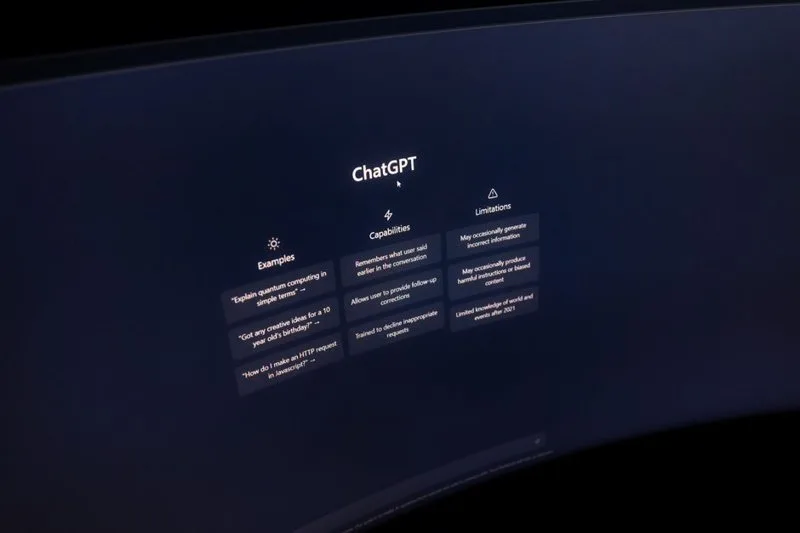
Enterprise productivity has decisively shifted away from public cloud-reliant Large Language Models toward local inference architectures. For years, office workers and system engineers relied on web-based wrappers that sent sensitive corporate telemetry, proprietary source code, and personal documents to remote server clusters. Deploying a local ai assistant windows pc setup has become standard operating procedure for professionals demanding zero latency, air-gapped data sovereignty, and unthrottled execution. By leveraging dedicated Neural Processing Units (NPUs) integrated into modern CPUs and high-bandwidth consumer GPUs, Windows users can now run powerful 7B, 13B, and quantized 70B parameter models natively on their desktop hardware.
Organizations handling confidential financial ledgers, legal contracts, or classified research and development data cannot afford the compliance risks inherent in third-party API logging. Implementing private desktop ai without cloud connectivity guarantees that every prompt token, context window, and intermediate embedding stays strictly confined to the local Non-Volatile Memory Express (NVMe) solid-state drive. Concurrently, advancements in contextual task automation allow power users to automate repetitive tasks ai assistant workflows directly inside the Win32 and Universal Windows Platform (UWP) ecosystems. Whether you are executing background regex parsing across thousands of log files or orchestrating complex software build pipelines, running an offline voice ai computer completely transforms how you interact with your operating system.
⚡ Key Takeaways
- Core Concept: Local Windows AI eliminates cloud latency and telemetry risks by running quantized models directly on local hardware accelerators (GPUs and NPUs).
- Key Requirement / Metric: Minimum 16GB VRAM and 32GB system RAM are recommended to maintain inference speeds above 35 tokens per second.
- Action Step: Deploy open-source runtimes like Ollama or LM Studio alongside native Windows automation scripts to manage offline workflows securely.
- Common Pitfall: Neglecting VRAM limits, which forces model offloading to system RAM and causes catastrophic performance degradation.
Architectural Shift: Why Local Windows AI Trumps Cloud APIs
The transition from cloud-dependent chatbots to dedicated local engines is driven by three inescapable technical constraints: network latency, cost scaling, and data exposure. When relying on commercial cloud APIs, every keystroke travels across public routing nodes, incurring round-trip latencies often exceeding 200 milliseconds. Conversely, a dedicated local runtime operating on specialized hardware achieves time-to-first-token (TTFT) metrics under 25 milliseconds. This instantaneous response creates a fluid, conversational workflow where the interface reacts as quickly as a native operating system dialog.
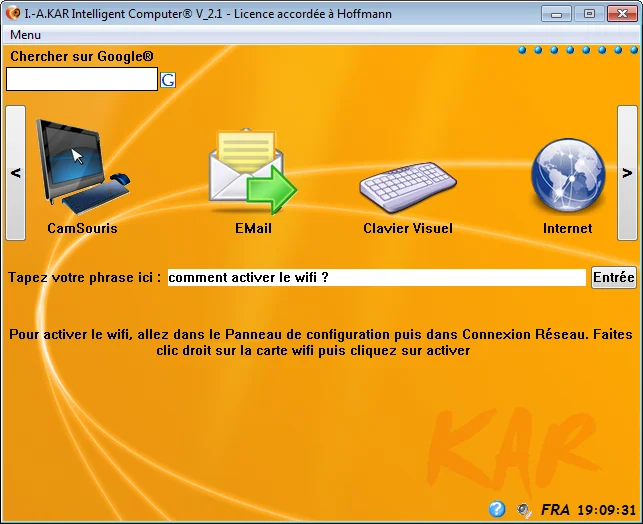
Furthermore, cloud providers routinely alter their model weights, deprecate API endpoints, or impose harsh rate limits that disrupt continuous enterprise workflows. Enterprises that integrate high-performance workstations such as the KAR Intelligent Computer eliminate external dependencies entirely. These specialized machines are pre-configured with balanced thermal envelopes and high-speed memory buses designed to sustain continuous 100% GPU utilization during heavy inference workloads without thermal throttling.
| Metric / Feature | Cloud-Based AI API | Local AI Assistant Windows PC |
|---|---|---|
| Data Privacy | Processed on third-party servers | 100% air-gapped; zero leakage |
| Latency (TTFT) | 150ms to 500ms+ | <30ms local hardware execution |
| Offline Capability | None | Fully functional during outages |
| Operational Cost | Subscription fees | Zero marginal cost |
Configuring Your Offline Voice AI Computer and Runtime Environment
Setting up a robust local ecosystem requires configuring both the LLM inference server and the voice pipeline framework. Windows 11 provides deep integration with DirectML and ONNX Runtime, allowing local models to leverage DirectX-compatible GPUs alongside CUDA cores. To establish a headless local backend, administrators typically deploy Ollama as a Windows service, exposing a local REST API on port 11434.
To verify that your Windows environment is utilizing the correct hardware accelerators for your local models, execute the following PowerShell snippet to inspect active DirectML and GPU device allocation:
# PowerShell script to check GPU acceleration availability for local AI runtimes
Get-CimInstance Win32_VideoController | Select-Object Name, AdapterRAM, DriverVersion
# Verify active local LLM listening ports
Get-NetTCPConnection -LocalPort 11434 -State Listen
For voice interaction, integrating Whisper.cpp for speech-to-text (STT) alongside Piper for text-to-speech (TTS) creates a lightning-fast offline voice AI computer experience. Audio input from your microphone is sampled at 16kHz, buffered into memory, and transcribed locally in real time without audio packets ever leaving your machine.
Pro Tip: When configuring quantized models for local desktop use, prioritize GGUF formats with Q4_K_M or Q5_K_M quantization levels. They offer the optimal mathematical balance between minimal perplexity degradation and maximum token generation speed on consumer VRAM budgets.
Automating Complex Operating System Workflows with Local AI
Beyond answering questions, a modern desktop assistant acts as an autonomous agent capable of executing system-level operations. By pairing a local LLM with tool-calling capabilities and PowerShell execution scopes, you can orchestrate multi-step administrative tasks effortlessly. For instance, rather than manually navigating through nested Control Panel menus or hunting for stray cache directories, you can instruct your assistant to audit system storage, clean temporary files, or generate diagnostic reports.
Consider an administrative script designed to monitor system health and trigger automated remediation without waiting on cloud callbacks. Keeping monitoring and execution local prevents downtime and isolates operational workflows from external network outages.
To allow your local assistant to interact safely with the Windows filesystem, restrict its execution policies to signed scripts and temporary sandbox directories:
# Set restricted execution policy for local AI automation scripts
Set-ExecutionPolicy -ExecutionPolicy RemoteSigned -Scope Process

# Create a local staging directory for automated file processing
$AIWorkspace = "C:\AI_Workspace"
if (!(Test-Path -Path $AIWorkspace)) {
    New-Item -ItemType Directory -Path $AIWorkspace
}
Write-Host "Secure local AI workspace initialized at $AIWorkspace"
Memory Management, VRAM Optimization, and Avoiding Performance Bottlenecks
The single greatest hurdle when deploying large language models locally is managing Video RAM (VRAM) constraints. If a model exceeds your GPU's VRAM capacity, the runtime automatically offloads excess layers to system RAM via the PCIe bus. This offloading introduces a severe performance bottleneck, dropping generation speeds from 40 tokens per second down to a sluggish 2 or 3 tokens per second.
To prevent memory starvation, tune your context window size (num_ctx) within your model configuration files. While many modern models support a 128k context window, maintaining such a large KV cache consumes gigabytes of VRAM. For daily desktop productivity, restricting the active context window to 8k or 16k tokens preserves ample headroom for concurrent applications like IDEs, web browsers, and virtual machines.
Furthermore, keeping your system memory architecture optimized prevents memory bloat, unnecessary paging to disk, and thermal throttling—ensuring interactive desktop applications remain responsive even while running local quantized inference workloads.
Advanced Security Protocols for Local AI
Security is the primary driver for moving away from cloud-based AI. When you run a local ai assistant windows pc, you are effectively air-gapping your intellectual property. However, security is not just about connectivity; it is about the integrity of the model weights themselves. Always verify the SHA-256 hashes of any model files downloaded from repositories like HuggingFace to prevent supply chain attacks. Furthermore, ensure that your local AI assistant runs under a dedicated, low-privilege service account rather than the primary administrative user account. This limits the potential blast radius if a malicious prompt injection were to occur.
By utilizing Windows AppContainer isolation, you can further sandbox the AI runtime, ensuring that even if the model is compromised, it cannot access sensitive system files or network interfaces. This multi-layered approach to security is what defines a truly professional-grade private desktop ai without cloud implementation.
The Future of Localized Neural Processing
As we look toward the next generation of desktop computing, the integration of dedicated NPU silicon into consumer motherboards will continue to accelerate. We are moving toward a paradigm where the operating system itself is AI-native, with local assistants managing file indexing, predictive resource allocation, and real-time accessibility features. The ability to automate repetitive tasks ai assistant will evolve from simple script execution to complex, intent-based reasoning where the assistant understands the semantic context of your work. An offline voice ai computer will no longer be a niche tool for power users but a fundamental requirement for any professional workstation that values privacy, performance, and reliability.
Troubleshooting Common Local AI Deployment Errors
Even with careful planning, local AI administrators frequently encounter specific runtime errors. Below are the most common failure modes and their direct technical resolutions: Related reading: Control Windows Apps with Voice: AI Desktop Automation Guide.
- Error:
CUDA out of memoryorHIP out of memoryCause: The loaded model size plus the active KV cache exceeds the physical VRAM of your GPU.Solution: Reduce the number of layers offloaded to the GPU (using the-1flag cautiously), switch to a smaller quantized GGUF variant (e.g., dropping from Q8_0 to Q4_K_M), or lower the context window size from 32k to 4k. - Error: High CPU utilization with extremely slow token generationCause: The model is running entirely on the CPU because the GPU drivers or DirectML/CUDA runtimes are misconfigured.Solution: Reinstall the hardware vendor's latest display drivers and verify that your inference client explicitly detects your dedicated GPU device in its startup logs.
- Error: Microphone input failure in offline voice modeCause: Windows privacy settings blocking desktop app access to recording devices.Solution: Navigate to Settings > Privacy & Security > Microphone, ensure 'Let desktop apps access your microphone' is toggled ON, and explicitly grant permissions to your local AI voice binary.
Actionable Implementation Checklist
- Verify hardware specifications: Ensure your PC features at least a dedicated 12GB+ VRAM GPU and 32GB system RAM.
- Install a local runtime engine (such as Ollama or LM Studio) and configure it to start as a background Windows service.
- Download optimized GGUF model weights (such as Llama 3 or Mistral variants) matching your VRAM budget.
- Configure offline voice STT/TTS pipelines using Whisper.cpp and Piper for hands-free desktop control.
- Establish strict PowerShell execution policies and sandbox folders for automated task execution.
- Test inference latency and tune KV cache limits to maintain token generation speeds above 30 tokens/sec.
Frequently Asked Questions
What hardware specs are required to run a local AI assistant on Windows?
Running a local large language model efficiently on Windows requires a dedicated GPU with a minimum of 12GB to 16GB of VRAM (such as an NVIDIA RTX 4070 or higher), at least 32GB of DDR5 system RAM, and a modern multi-core processor to handle token generation rates exceeding 40 tokens per second.
How does offline voice AI work without an internet connection?
Offline voice AI processes speech-to-text conversion and text-to-speech synthesis directly on your machine's local NPU or GPU using compressed whisper models and localized neural audio codecs, entirely bypassing external cloud APIs.
Is enterprise data secure when using private desktop AI without cloud?
Yes. Because all inference, prompt parsing, and vector database queries occur strictly within your local machine's memory and local SSD storage, proprietary code, customer records, and sensitive documents never cross network boundaries.
Can a local desktop AI assistant fully automate Windows system workflows?
Through integration with local scripting environments, PowerShell modules, and accessibility APIs, a local assistant can parse window handles, execute command-line tasks, and batch-process files without human intervention.
KAR Intelligent Computer
Deploy high-performance, private, and practical cognitive computing on your desktop.
Explore KAR Intelligent Computer →