Home / Blog / Accessible IT
Simplified Windows PC for Seniors: Technical Setup Guide

Out-of-the-box operating systems like Windows 10 and Windows 11 are optimized for high pixel density displays, high-density multi-tasking workflows, and continuous real-time notification feeds. For technical power users, these defaults maximize productivity. However, for older adults facing age-related visual degradation, fine motor tremors, or cognitive friction, standard OS environments present severe operational barriers. Tiny interface targets, aggressive pointer acceleration, hidden scrollbars, and unexpected system alerts frequently lead to accidental clicks, lost files, and user frustration.
Building a reliable, accessible computer for senior citizens requires shifting the operating system from a complex workstation into a predictable, forgiving environment. By systematically adjusting display scaling, widening click target margins, hardening UI layouts, eliminating intrusive OS notifications, and deploying dedicated accessibility tools, IT professionals and family administrators can build a simplified windows pc for seniors that remains resilient against unintended operational errors.
⚡ Key Takeaways
- Core Concept: Transforming Windows for older adults requires reducing visual clutter, enlarging interaction boundaries, and enforcing deterministic interface behavior.
- Key Requirement / Metric: Maintain native display resolution while elevating OS scaling to 125%–150%, set mouse cursor size to 4–5 with high contrast, and expand drag-and-drop thresholds from 4 to 20 pixels.
- Action Step: Lock down the taskbar alignment to the left, strip consumer background apps via PowerShell, disable notification toasts, and configure unattended remote administration.
- Common Pitfall: Lowering monitor screen resolution instead of adjusting scaling metrics, which introduces severe bilinear font blurring and invalidates interface targets.
Visual Optimization: Building a Large Icon Desktop Elderly Interface
Age-related ocular changes—including presbyopia, reduced contrast sensitivity, reduced spatial frequency perception, and restricted peripheral vision—make standard 100% desktop scaling unmanageable. To create a functional large icon desktop elderly interface, system engineers must adjust settings across display scaling, desktop grid geometry, font rendering, and cursor ballistics.
DPI Scaling and System Font Metrics
A common mistake when configuring PCs for low-vision users is reducing the display resolution (for instance, dropping a 1920x1080 panel to 1280x720). Lowering hardware resolution below the panel's native pixel array introduces bilinear interpolation artifacts, resulting in blurry text edges and rendering artifacts that exacerbate visual strain. The display resolution must always remain at native specifications (e.g., 1920x1080 at 60 Hz or 144 Hz).
Instead, apply Desktop Display Scaling through the Windows Scaling Engine:
- Navigate to Settings > System > Display.
- Under Scale & layout, adjust the Scale drop-down menu to 125% for 21-inch monitors or 150% for 24-inch to 27-inch 1080p panels.
- Navigate to Settings > Accessibility > Text size. Increase the global text scaling slider to 115%–120%. This creates a compound font size that enlarges system labels, context menus, and title bars without breaking application layout containers.
Desktop Icon Grid Spacing and Registry Geometry
Default desktop shortcut icons measure 32x32 pixels (Medium) or 48x48 pixels (Large). For senior users experiencing hand tremors, these small targets lead to missed double-clicks and accidental selection of adjacent icons. Windows allows icon sizing up to 256x256 pixels, but the ideal size for a simplified senior desktop ranges between 64x64 and 96x96 pixels.
To configure extra-large desktop icons and widen their drop target padding, execute the following steps or apply the registry script below:
- Focus on the desktop background and press
Ctrl + Shift + 2(which instantly forces Extra Large Icons). - Open the Registry Editor (
regedit.exe) and navigate toHKEY_CURRENT_USER\Control Panel\Desktop\WindowMetrics. - Modify the metric keys to widen spacing so larger icons do not overlap:
Windows Registry Editor Version 5.00

; Enlarge Desktop Icons and Widen Grid Metric Padding
[HKEY_CURRENT_USER\Control Panel\Desktop\WindowMetrics]
"Shell Icon Size"="64"
"IconSpacing"="-1725"
"IconVerticalSpacing"="-1725"
High-Contrast Mouse Cursor and Ballistic Calibration
The standard 16x16 pixel translucent white mouse pointer easily gets lost against light background windows. Furthermore, default Windows mouse ballistics utilize dynamic pointer acceleration ("Enhance pointer precision"), which continuously changes the ratio between physical hand movement and pointer displacement based on speed. For users with Parkinson's tremors or slowed reflexes, non-linear acceleration causes severe target overshooting.
Reconfigure pointer mechanics under Settings > Accessibility > Mouse pointer and touch and main.cpl (legacy Mouse Properties):
- Pointer Style: Select Custom High-Contrast Yellow (RGB: 255, 255, 0) or Solid Black with a thick white outline.
- Pointer Size: Move the size slider to 4 or 5 (yielding a target area of approximately 32x32 to 40x40 display pixels).
- Ballistics & Speed: Open legacy mouse properties (
main.cpl). Set pointer speed to step 4 of 11 and uncheck "Enhance pointer precision". This enforces 1:1 linear tracking where physical hand movement maps directly and predictably to screen coordinates. - Pointer Sonar: Check the box for "Show location of pointer when I press the CTRL key". This allows users to press the Ctrl key to trigger an animated visual locator ring around the cursor.
Pro Tip: Always disable high-precision touchpad swipe gestures (such as three-finger desktop switching and pinch-to-zoom) under Settings > Bluetooth & devices > Touchpad. Unintentional multi-touch contact by palm edges often triggers accidental application switching.
OS Streamlining: Configuring an Easy Windows Interface Beginners Can Navigate
Accidental drag-and-drop operations, unexpected taskbar rearrangement, and intrusive system notifications are primary drivers of technical support calls. Building an easy windows interface beginners can operate requires stripping away unnecessary interactive elements and hardening the remaining layout.
Taskbar Layout Hardening and Start Menu Simplification
The Windows 11 taskbar defaults to centered icons, dynamic news widgets, embedded search boxes, and multi-tasking view buttons. Centered taskbars shift location horizontally as programs open and close, ruining muscle memory. To establish a predictable layout:
- Navigate to Settings > Personalization > Taskbar.
- Set Taskbar alignment to Left. Anchoring icons to the bottom-left corner creates fixed physical targets that never shift position.
- Toggle off Search, Task view, Widgets, and Chat.
- Under Taskbar behaviors, set Combine taskbar buttons and hide labels to Never or When taskbar is full. Displaying explicit text labels alongside icons (e.g., "Word - Family Letter" instead of a bare blue icon) significantly aids recognition.
- Pin only essential applications (e.g., Web Browser, Email, Photos, Word Processor) directly to the taskbar and unpin everything else.
Preventing Accidental Drag-and-Drop File Displacement
When older users click on files or desktop icons, involuntary hand movements often hold the primary mouse button down long enough to register a drag operation. The default Windows threshold to initiate a drag-and-drop movement is just 4 pixels. As a result, users frequently drag primary shortcuts into adjacent subfolders, making their applications seem to disappear.
You can prevent accidental drag actions by elevating the movement distance required to trigger a drag operation to 20 pixels using PowerShell:
# Elevate Drag-and-Drop Thresholds to Prevent Accidental File Displacement
Set-ItemProperty -Path 'HKCU:\Control Panel\Desktop' -Name DragHeight -Value 20
Set-ItemProperty -Path 'HKCU:\Control Panel\Desktop' -Name DragWidth -Value 20
With this threshold applied, a user must click and intentionally drag the cursor more than 20 pixels before Windows initiates a drag operation, effectively eliminating accidental shortcut and folder moves.
Suppressing Intrusive Notifications and Windows Consumer Bloat
Unexpected pop-up windows, browser notifications, and system notifications create unnecessary panic for senior users who may misinterpret them as security warnings. Turn off non-essential notifications globally:
- Navigate to Settings > System > Notifications. Turn the main Notifications toggle to Off, or uncheck "Show notifications on the lock screen" and "Allow notifications to play sounds".
- Enable Focus assist (or Do Not Disturb in Windows 11) and set it to Priority only or Alarms only.
- Disable Windows tips and consumer suggestions under Settings > System > Notifications > Additional settings by unchecking "Get tips and suggestions when using Windows".
Technical Blueprint: Standard Defaults vs. Senior Accessibility Profile
The following table illustrates the key differences between a standard out-of-the-box Windows configuration and an optimized setup designed for senior users:
| Configuration Domain | Default Windows 10/11 Setting | Senior Accessibility Target Profile | Technical Benefit & Rationale |
|---|---|---|---|
| Display DPI Scaling | 100% (Native Scale) | 125% – 150% Dynamic Scale | Enlarges UI click targets while maintaining native display clarity. |
| Mouse Acceleration | Enabled ("Enhance pointer precision") | Disabled (Linear Tracking, Speed 4/11) | Establishes predictable 1:1 physical-to-virtual hand tracking. |
| Cursor Visuals | Small White Pointer (16x16 px) | Custom Yellow/Black Pointer (Size 4-5) | Eliminates lost cursor frustration on bright backgrounds. |
| Desktop Grid Metrics | -1125 dword (Standard Spacing) | -1725 dword (Expanded Padding) | Prevents icon overlap and enlarges drop targets. |
| Drag-and-Drop Distance | 4 Pixels Threshold | 20 Pixels Threshold | Stops accidental file moving caused by hand tremors. |
| Taskbar Icon Layout | Centered (Dynamic Positions) | Left-Aligned (Fixed Static Positions) | Preserves spatial muscle memory across system sessions. |
| System Notifications | Enabled (All Application Toasts) | Disabled / Focus Assist Active | Eliminates intrusive pop-up dialogs and false alarms. |
| Windows Updates | Automatic Auto-Restart Prompts | Enforced Active Hours (7 AM - 11 PM) | Prevents unexpected system reboots during active usage. |
Administrative Lockdown and Automated Maintenance Protocols
Maintaining a simplified windows pc for seniors over long periods requires proactive administration. Without automated maintenance and permissions hardening, clutter and configuration drift can degrade system performance over time.
PowerShell Script for Bloatware Removal
Pre-installed consumer software, trial games, and promotional apps add noise to the Start Menu and consume system resources. Use an administrative PowerShell prompt to strip non-essential AppX packages cleanly:
# Execute in PowerShell (Run as Administrator) to remove consumer bloatware
$BloatApps = @(
    "*Microsoft.GamingApp*",
    "*XboxApp*",
    "*XboxGamingOverlay*",
    "*Microsoft.GetHelp*",
    "*Microsoft.Getstarted*",
    "*Microsoft.MicrosoftSolitaireCollection*",
    "*Microsoft.People*",
    "*Microsoft.YourPhone*",
    "*Microsoft.BingNews*",
    "*Microsoft.BingWeather*",
    "*Clipchamp.Clipchamp*"
)

foreach ($App in $BloatApps) {
    Get-AppxPackage -Name $App -AllUsers | Remove-AppxPackage -AllUsers -ErrorAction SilentlyContinue
}
User Account Control (UAC) and Rights Separation
Never configure a senior user's primary desktop session with full Local Administrator privileges. Accidental clicks on malicious web ads or phishing attachments can execute unauthorized software installations or alter system registry keys.
- Create a primary operational account designated as a Standard User.
- Create a separate local Administrator account protected by a strong password known only to the caregiver or IT manager.
- Configure User Account Control (UAC) to maximum security on the administrator account. When standard users attempt unauthorized installations, Windows prompts for administrator credentials, preventing accidental software installations.
Automating Windows Updates and Maintenance Windows
Unannounced operating system updates that trigger unexpected reboots disrupt the user experience and can cause panic. Configure update windows to execute during off-peak night hours:
- Navigate to Settings > Windows Update > Advanced options > Active hours. Set the schedule to Manual with active hours running from 7:00 AM to 11:00 PM.
- Alternatively, enforce update behavior via Group Policy (
gpedit.msc): navigate to Computer Configuration > Administrative Templates > Windows Components > Windows Update > Manage end user experience > Configure Automatic Updates. Set the policy to Option 4 (Auto download and schedule the install) for 3:00 AM daily.
Integrating Specialized Assistive Software Layers
When physical impairments—such as severe arthritis, Parkinson's tremors, stroke recovery, or advanced vision loss—exceed what standard Windows settings can handle, specialized accessibility software provides necessary support.
Deploying Comprehensive Assistive Frameworks
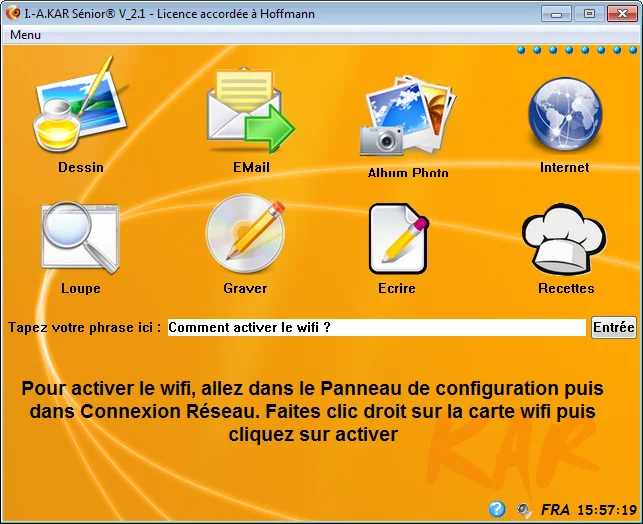
Rather than installing multiple disconnected utilities that might conflict with each other, deploying an integrated suite like KAR Disability offers a unified framework. Integrated accessibility suites combine dwell-clicking engines, custom onscreen keyboards, macro triggers, and target magnification into a single non-intrusive environment.
To learn how software abstraction layers hook into lower-level Windows APIs to convert physical movements into reliable system inputs, explore our guide on how accessible computing works inside modern operating systems.
Hands-Free Input Modalities: Voice and Head Tracking
For seniors unable to operate traditional physical mice or keyboards, hands-free input channels offer complete operational independence:
- Voice Recognition Integration: Speech engines turn spoken commands into system navigation inputs and text dictation. For installation steps and voice navigation setup, refer to our comprehensive guide on voice controlling a computer without hands.
- Webcam Optical Tracking: Head tracking software translates subtle head movements into mouse cursor movement on screen. When combined with dwell clicking (where hovering over an icon for a set time triggers a click), users can operate the entire OS hands-free. Read our detailed guide on operating a computer by head movement and voice for setup details.
Important: When configuring dwell-click software for older users, set the initial dwell hover latency to 800ms to 1200ms. Setting it lower (e.g., 300ms) often triggers accidental clicks while the user is simply reading text on screen.
Troubleshooting Common Failure Modes & Edge Cases
Even a well-configured accessible computer for senior citizens can occasionally encounter issues. Below are solutions for common usability problems and administrative challenges.
Resolving Common Senior Usability Disruptions
- Accidental Screen Zoom Reset: If a user holds the
Ctrlkey while scrolling the mouse wheel, the display or web browser may zoom in or out unpredictably. Reset web browser zoom at any time by pressingCtrl + 0. In web browsers, lock the default zoom level to 125% under Settings > Appearance > Zoom. - Sticky Keys and Filter Keys Popups: Rapidly tapping the
Shiftkey five times brings up the Windows Sticky Keys accessibility prompt, which can confuse users. Disable these shortcut triggers entirely in Settings > Accessibility > Keyboard by turning off "Shortcut key for Sticky Keys" and "Shortcut key for Filter Keys". - Browser Notification and Ad Suppression: Malicious websites often prompt users to "Click Allow to continue", subscribing them to push notification ads. Block these entirely by navigating to
edge://settings/content/notificationsorchrome://settings/content/notificationsand toggling "Sites can ask to send notifications" to Off. Install a lightweight ad-blocker like uBlock Origin to filter out deceptive download links.
Setting Up Unattended Remote Support Access
Caregivers need a reliable way to connect remotely and solve technical problems without asking the senior user to navigate complex permission dialogs over the phone:
- Install a secure remote administration tool such as TeamViewer, AnyDesk, or Microsoft Quick Assist.
- Configure the connection tool to run as a System Service that starts automatically upon boot.
- Set up an Unattended Access Password within the software settings so remote sessions can connect directly without requiring local prompt confirmations.
- Ensure the remote client application is minimized to the system tray so it does not clutter the desktop environment.
Comprehensive Pre-Deployment Checklist
Before delivering a newly configured system to a senior user, verify each item on this technical deployment checklist:
- [ ] Native Resolution & Scaling: Display panel set to native resolution; Windows DPI scale set to 125%–150%; text size boosted to 115%+ in Accessibility settings.
- [ ] Pointer Optimization: Cursor enlarged to size 4–5 with high-contrast yellow/black outline; "Enhance pointer precision" unchecked; speed set to step 4/11; Ctrl sonar ring enabled.
- [ ] Drag-and-Drop Guardrail: Registry entries
DragHeightandDragWidthraised to 20 pixels underHKCU\Control Panel\Desktop. - [ ] Taskbar Hardening: Taskbar left-aligned; search box, task view, and widgets hidden; window labels set to display permanently; essential apps pinned.
- [ ] Noise & Bloat Removal: Unnecessary AppX consumer packages removed via PowerShell; OS notification toasts disabled; Focus Assist priority rules enforced.
- [ ] Security & Accounts: Primary operational session set to Standard User; password-protected Local Administrator account active; UAC set to high security.
- [ ] Maintenance Automation: Active Hours configured (7:00 AM – 11:00 PM); automatic reboot prompts suppressed; unattended remote access client installed and verified.
- [ ] Assistive Layer: Assistive software suites like KAR Disability installed and tailored with appropriate dwell hover thresholds (800ms+).
Frequently Asked Questions
What is the optimal display scaling for a senior using a 1080p monitor?
For a standard 24-inch 1080p (1920x1080) monitor, an OS scale factor of 125% to 150% provides clear visibility and larger click targets without distorting interface elements. Always keep the screen at its native resolution and adjust scaling settings rather than reducing resolution.
How can I prevent accidental moving of desktop icons and folders?
Elevate the Windows drag-and-drop sensitivity threshold in the registry (HKCU\Control Panel\Desktop) by increasing 'DragHeight' and 'DragWidth' from 4 pixels to 20 pixels. This forces Windows to ignore small mouse movements while clicking, preventing accidental drag actions.
Are built-in Windows accessibility settings sufficient, or is specialized software needed?
Built-in Windows accessibility features handle basic display scaling and cursor adjustments well. However, for users with progressive tremors, arthritis, stroke recovery, or low vision, specialized software suites like KAR Disability offer simplified controls, automated dwell clicking, and custom interfaces tailored for complex motor needs.
How do I block intrusive popups and unexpected browser alerts for an older user?
Turn off Windows notification toasts in Settings > System > Notifications, disable notification prompts in browser content settings (edge://settings/content/notifications), install an ad-blocker like uBlock Origin, and run the primary user account under a Standard (non-Administrator) security profile.
KAR Disability
Empower full PC control via head tracking, voice recognition, and adaptive switch input.
Explore KAR Disability →