Home / Blog / Accessible IT
Voice Control Computer Without Hands: Windows Setup Guide

Operating a Windows PC without physical hand interaction requires a coordinated accessibility stack comprising high-gain audio hardware, real-time acoustic model processing, and Windows UI Automation (UIA) frameworks. For users with severe motor impairments, spinal cord injuries, or neuromuscular conditions, configuring a reliable system for speech recognition motor disability workflows is essential for daily independence. Modern 64-bit operating systems provide native deep-learning engines alongside specialized assistive software to map spoken natural language directly into low-level operating system events.
Achieving absolute, zero-touch operational control over desktop environments demands precise hardware gain staging, acoustic calibration, screen coordinate mapping, and macro-driven interface navigation. This technical guide outlines the architecture, setup procedures, script automations, and troubleshooting methods necessary to configure voice control computer without hands environments on Windows 11 systems.
⚡ Key Takeaways
- Core Concept: Complete hands-free computing requires pairing low-latency acoustic models with UI Automation (UIA) element trees and screen-coordinate grids.
- Key Metric: Maintain an input audio Signal-to-Noise Ratio (SNR) above 60 dB with less than 30 ms buffer latency using cardioid USB or XLR hardware interfaces.
- Action Step: Deploy Windows 11 Voice Access on local machine-learning models, configure custom macro scripts, and assign explicit UIA badges for precision navigation.
- Common Pitfall: Relying on omnidirectional array microphones or uncalibrated audio gains, which leads to high word error rates (WER) and command execution failures.
1. Audio Hardware Engineering and Signal Pipeline Optimization
The accuracy of speech recognition relies heavily on input signal clarity. In hands-free computer operation, high Word Error Rates (WER) are rarely caused by engine limitations alone; they are frequently caused by low-quality analog-to-digital conversion, phase distortion, ambient acoustic reflections, or poor microphone gain staging.
Microphone Selection and Acoustic Characteristics
Standard omnidirectional microphones integrated into consumer webcams or laptop bezels pick up room reverberation, HVAC vibrations, and fan noise. For reliable hands-free operation, select capturing hardware adhering to these engineering standards:
- Transducer & Polar Pattern: Directional cardioid or supercardioid dynamic/condenser elements. A cardioid pattern rejects off-axis acoustic reflections coming from computer speakers and side walls while isolating the user's direct vocal output.
- Mounting Topology: Adjustable boom arms, desk-mounted goosenecks, or head-worn boom microphones. Fixed positioning relative to the mouth prevents volume spikes during natural torso shifts.
- Frequency Response & SNR: Flat response curve across the human speech spectrum (80 Hz to 12,000 Hz) with a Signal-to-Noise Ratio (SNR) exceeding 60 dB at 1 kHz.
- Audio Subsystem Latency: Configure Windows Audio Session API (WASAPI) buffers to achieve under 30 ms end-to-end processing delay, preventing command execution lag.
Pro Tip: Position cardioid gooseneck microphones between 2 and 4 inches from the side of the mouth, angled at 45 degrees. This off-axis placement eliminates plosive air bursts (caused by "p" and "b" sounds) while maintaining maximum voice signal power.
Gain Staging and Signal Calibration via Windows Tools
To calibrate input gain levels without third-party software overhead, run an elevated PowerShell console to query the system's active sound capture devices and launch the native MMSYS control applet:
# Query active audio capture devices and hardware driver status
Get-CimInstance -ClassName Win32_SoundDevice | Where-Object { $_.Status -eq "OK" } | Select-Object Name, Manufacturer, Status

# Open legacy Sound control panel directly for input level calibration
control mmsys.cpl sounds
Within the Recording tab of the Sound panel, select the designated capture device, open Properties, and select the Levels tab. Adjust the master gain control until your speaking voice peaks between -12 dB and -6 dB on the system VU meter. Ambient room noise (fans, external traffic) must remain below -45 dB when you are silent. Disable all driver-level "Microphone Boost" toggles, as hardware boost circuits introduce non-linear distortion that impairs phoneme parsing engines.
2. Architectural Deployment of Windows 11 Voice Access
With the release of Windows 11 (build 22H2 and later), Microsoft introduced Voice Access, replacing the legacy Windows Speech Recognition engine. Voice Access uses on-device deep-learning speech models that operate completely offline, lowering voice command latency to sub-50ms while eliminating cloud data processing dependence.
Step-by-Step Native Voice Access Configuration
- Open the system settings dashboard using
Win + I. - Navigate to Accessibility > Interaction > Voice access.
- Toggle the Voice access control switch to On.
- Enable the checkbox labeled Start voice access after you sign in to your PC to ensure full access immediately following boot or reboot sequences.
- Select Download when prompted to store the local speech recognition model binary on your primary storage volume.
Once loaded, Voice Access displays a control bar at the top of the monitor. Toggle microphone states by speaking "Voice access wake up" or "Unmute" to open the channel, and "Voice access sleep" or "Mute" to drop into low-power standby.
Screen Coordinates, UI Automation, and Grid Systems
Navigating modern operating systems hands-free requires precise mouse pointer placement over non-standard UI elements, web applications, and desktop canvases. Voice Access achieves this through two distinct accessibility layers: UI Automation (UIA) numerical tagging and spatial grid breakdown.
Issuing the command "Show numbers" triggers Windows to scan the active UIA accessibility tree. It places numbered overlay tags above every recognized button, text box, menu item, and hyperlinked element. Speaking the designated integer executes a left-click on that element instantly. For raw canvas surfaces or non-standard legacy apps lacking UIA accessibility nodes, command "Show grid" to project a 9-zone numbered matrix across the screen. Speaking a target quadrant number (e.g., "Grid 3") zooms into that specific region, repeating sub-grids until pixel-precise positioning is reached for clicking, double-clicking, or dragging actions.
For text entry across web forms and desktop editors, Windows incorporates specialized hands-free voice typing windows features. Activated via "Voice typing" or the Win + H shortcut, this module performs real-time speech-to-text transcription, auto-punctuation, and natural language formatting across any focused input field.
3. Specialized Assistive Software Ecosystems for Motor Impairments
While native tools provide effective base navigation, complex enterprise workflows, multi-monitor configurations, and adaptive hardware setups benefit from specialized assistive software suites. Professional platforms like KAR Disability are designed specifically to combine speech control, customized visual overlays, and alternative input tracking into unified accessible desktop environments.
Similarly, specialized tools such as Dragon NaturallySpeaking provide enterprise voice recognition, custom phonetic dictionaries, and deep application-level macro hooks for complex text processing environments.
The comparison table below details the functional differences between native Windows tools and specialized assistive platforms when building a workstation for a speech recognition motor disability context:
| Operational Parameter | Native Windows 11 Voice Access | KAR Disability Framework | Dragon Professional / Enterprise |
|---|---|---|---|
| Processing Core | Local Machine-Learning Model | Integrated Accessibility Engine | Deep Phoneme Engine / SAPI API |
| Offline Processing | Yes (Local model cached) | Yes | Yes |
| Multi-Display Navigation | Focus-bound single display | Advanced Cross-Screen Mapping | Application-level focus tracking |
| Custom Macro Capabilities | Basic string replacements | Multi-Input Macro Orchestration | Advanced VBA & Scripting Engine |
| System Resource Footprint | ~250 MB RAM, <3% CPU idle | Low Footprint / Lightweight | ~1 GB RAM, dynamic CPU loading |
| Multi-Modal Input Support | Voice input only | Voice, Head-tracking & Switches | Voice & Dictation Focus |
4. Customizing Assistive Voice Commands PC Shortcuts and Automation Scripts
To reduce vocal fatigue and speed up daily productivity, users should collapse multi-step OS workflows into concise, custom voice shortcuts. Configuring tailored assistive voice commands pc macros allows single-phrase triggers to execute complex desktop tasks.
Building Custom Voice Commands in Windows 11
Windows Voice Access includes a custom shortcut editor accessible via Voice Access Settings (gear icon) > Manage custom commands > Create new command.
- Phrase Trigger:
"Setup Development Workspace" - Action Mapping: Launch target application binaries, snap windows side-by-side, and initiate specific voice typing modes automatically.
For advanced workflow orchestration, administrators can write PowerShell scripts that interface directly with the Windows API to handle window management, process launches, and interface positioning. The following script can be bound to a single voice command trigger to arrange applications into a dual-pane workspace:
# PowerShell Helper: Automate Window Focus and Layout Snapping
Add-Type -TypeDefinition @"
using System;
using System.Runtime.InteropServices;
public class WindowManager {
    [DllImport("user32.dll")]
    public static extern bool SetForegroundWindow(IntPtr hWnd);
    [DllImport("user32.dll")]
    public static extern bool ShowWindow(IntPtr hWnd, int nCmdShow);
    [DllImport("user32.dll")]
    public static extern bool MoveWindow(IntPtr hWnd, int X, int Y, int nWidth, int nHeight, bool bRepaint);
}
"@

# Retrieve targeted process handle
$proc = Get-Process -Name "notepad" -ErrorAction SilentlyContinue
if ($proc) {
    $handle = $proc.MainWindowHandle
    # Restore window if minimized
    [WindowManager]::ShowWindow($handle, 9)
    # Snap window to left half of primary 1920x1080 screen
    [WindowManager]::MoveWindow($handle, 0, 0, 960, 1080, $true)
    # Shift active keyboard focus to application
    [WindowManager]::SetForegroundWindow($handle)
}
Combining Voice Controls with Head Tracking Systems
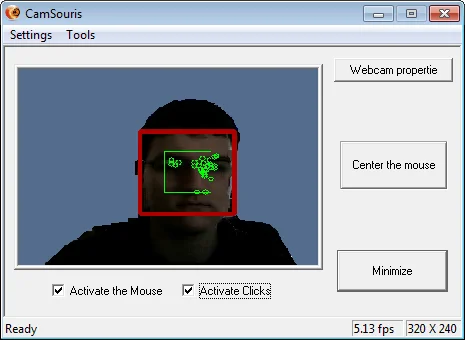
For complete hands-free computing, combining voice input with optical head tracking yields maximum efficiency. Directing the mouse pointer smoothly with minimal head movements while executing left-clicks, right-clicks, and macro commands by voice eliminates screen grid reliance for continuous navigation.
Understanding how accessible computing works across multi-modal interfaces allows for highly optimized setups. Users can review exact operational guidelines in our comprehensive guide to operating a computer by head movement and voice.
Important: When combining optical head-tracking software with active voice recognition, turn off audio feedback cues in the head-tracking application. Software beep confirmations will trigger false inputs in the speech recognition engine.
5. Advanced Troubleshooting: Latency, UAC Elevation, and Audio Failures
System updates, audio driver renegotiations, or background process spikes can disrupt hands-free computer control. Use the following diagnostic procedures to resolve common failure modes.
Resolving High Input Latency and CPU Throttling
If voice command response times exceed 300 ms, local machine-learning inference is likely bottlenecked by system resource constraints or dynamic CPU frequency scaling.
- Open Task Manager (
Ctrl + Shift + Esc) and verify that background processes consume less than 15% overall CPU capacity while idle. - Open Power Options (
powercfg.cpl) and set the power plan to High Performance or Ultimate Performance to prevent processor core park states from delaying acoustic parsing. - Disable third-party Audio Processing Objects (APO), spatial sound drivers, and software equalizers inside the device properties window to eliminate audio buffer overhead.
Bypassing User Account Control (UAC) Secure Desktop Lockouts
When Windows displays a User Account Control (UAC) prompt, it shifts execution to an isolated Secure Desktop screen running under the `SYSTEM` account context. Standard user-mode speech accessibility utilities lose interface hooks during these prompts, causing input freezes.
To preserve voice control across administrative prompts without completely disabling security checks, configure the local group policy to allow accessibility applications to bypass the isolated secure desktop layer:
# Check UAC Secure Desktop Policy via Registry in PowerShell
Get-ItemProperty -Path "HKLM:\SOFTWARE\Microsoft\Windows\CurrentVersion\Policies\System" -Name "PromptOnSecureDesktop"

# To prevent UAC prompts from dropping accessibility focus, set value to 0
Set-ItemProperty -Path "HKLM:\SOFTWARE\Microsoft\Windows\CurrentVersion\Policies\System" -Name "PromptOnSecureDesktop" -Value 0
Emergency Script to Reset Audio Subsystem and Accessibility Services
If the system microphone stops responding or the voice control bar freezes unexpectedly, execute this recovery script via a voice shortcut, automated hotkey, or startup schedule to restart the audio stack:
# Emergency Reset Script for Audio Pipeline & Voice Access Service
Stop-Service -Name "Audiosrv" -Force
Stop-Service -Name "AudioEndpointBuilder" -Force
Start-Service -Name "AudioEndpointBuilder"
Start-Service -Name "Audiosrv"

# Kill and relaunch Windows Voice Access host process
Get-Process -Name "VoiceAccess" -ErrorAction SilentlyContinue | Stop-Process -Force
Start-Process "ms-settings:accessibility-voiceaccess"
6. Daily Operational Checklist for Hands-Free Computing
To ensure consistent hands-free reliability across daily desktop sessions, maintain this routine operational checklist: Related reading: Simplified Windows PC for Seniors: Technical Setup Guide.
- Hardware Verification: Ensure the microphone boom arm is securely locked 2 to 4 inches from the mouth at a 45-degree angle.
- Gain & Noise Floor Audit: Verify speech input peaks consistently between -12 dB and -6 dB, while ambient room noise remains muted below -45 dB.
- Service Autostart Audit: Confirm that Windows Voice Access or your specialized accessibility framework is configured to launch automatically at the user sign-in screen.
- UAC Isolation Management: Ensure UAC prompts do not lock out accessibility software by applying appropriate local group policies or running services with elevated privileges.
- Secondary Fallback Input: Keep an alternative tracking input (such as optical head-tracking or a sip-and-puff switch) connected as a secondary input method for system-level dialog recovery.
Frequently Asked Questions
Can I operate a Windows PC by voice completely offline?
Yes. Windows 11 Voice Access downloads its neural speech recognition model directly to your local drive during initial setup. Once installed, all acoustic processing, command parsing, and voice typing execute locally without requiring an active internet connection.
What should I do if voice control stops working during Windows administrator prompts?
By default, Windows User Account Control (UAC) isolates administrative prompts on a secure desktop screen that blocks standard accessibility overlays. You can resolve this by configuring the local policy to disable PromptOnSecureDesktop or running your accessibility software with elevated administrative privileges.
Which microphone style works best for hands-free computer control?
A cardioid or supercardioid directional microphone mounted on an adjustable gooseneck desktop arm or a dedicated noise-canceling USB headset provides the highest reliability. Cardioid patterns isolate your voice while rejecting surrounding ambient noise and speaker output.
How can I click precise screen targets that lack speech command labels?
Use the built-in grid command by stating 'Show grid'. Voice Access overlays a numbered 9-zone grid across your display. Stating a quadrant number repeatedly zooms into that area, allowing pixel-accurate mouse placement and clicking without physical input.
KAR Disability
Empower full PC control via head tracking, voice recognition, and adaptive switch input.
Explore KAR Disability →