Home / Blog / Energy and Green IT
PC Standby Power Draw: Measure & Stop Hidden Energy Waste
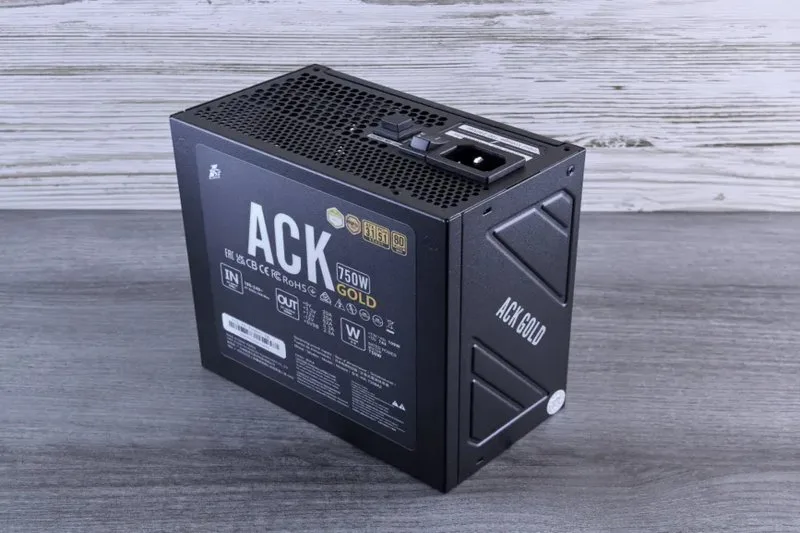
Workstation hardware rarely ceases electrical draw simply because an employee locks their user session or initiates a standard sleep command. In enterprise IT environments and home offices alike, desktop computers continuously pull active current from the AC grid due to volatile memory refresh cycles, active auxiliary power supply rails, and unoptimized peripheral bus states. This persistent background energy consumption—technically defined as phantom load or vampire power—silently inflates facility overhead and complicates sustainability targets. Minimizing hidden pc standby power draw requires auditing Advanced Configuration and Power Interface (ACPI) specifications, UEFI power configurations, and operating system kernel wake policies.
Addressing excessive office pc power consumption requires significantly more intervention than applying basic display-off group policies. Misconfigured client endpoints regularly leak between 3 watts and 15 watts per tower while remaining completely idle outside of working hours. Across an enterprise deployment of 500 desktop systems operating over non-business hours (roughly 6,000 idle hours per workstation annually), unmitigated standby drain accounts for up to 45 megawatt-hours of wasted electricity each year. By establishing physical measurement baselines, diagnosing driver-level wake triggers, and enforcing policy-driven power management, system administrators and IT engineers can eliminate vampire loads and cut computer electricity bills.
⚡ Key Takeaways
- Core Concept: Standby power drain occurs across ACPI low-power states (S0ix, S3, S4, S5) due to continuous DRAM self-refresh cycles, active 5VSB rails, unthrottled PCIe lanes, and misconfigured network wake patterns.
- Key Requirement / Metric: Traditional S3 Sleep maintains volatile memory retention (1.5W–4.5W), while unoptimized S0ix Modern Standby frequently leaks 8W–15W of continuous power during screen-off states.
- Action Step: Audit active wake locks using
powercfg /requests, enable UEFI/BIOS ErP/EuP low-power compliance states (S4+S5), and deploy centralized energy control software. - Common Pitfall: Assuming a turned-off PC draws zero power; without strict ErP/EuP firmware settings, motherboards keep network interface controllers, power button logic, and USB buses energized in S5.
The Micro-Architectural Mechanics of Phantom Load and ACPI States
To systematically eliminate residual power loss, system administrators must evaluate how operating system kernels interface with underlying hardware using the ACPI standard. System power states range from G0 (Working) to G3 (Mechanical Off), with specific sub-states dictating which physical sub-systems remain energized when active computing is suspended.
Deconstructing ACPI Power States
The operational power profile of a workstation depends directly on the specific ACPI state commanded by the OS kernel and system firmware:
- S0 Working State: The workstation is fully active. Dynamic Voltage and Frequency Scaling (DVFS) continuously scales CPU core voltage and clock frequencies according to active thread load.
- S0 Low Power Idle (Modern Standby / S0ix): Designed to maintain fast resume times and persistent cloud sync, Modern Standby leaves the CPU in an idle state while keeping network interfaces, memory channels, and system background processes periodically active. Resume latency is under 500 milliseconds, but unoptimized background applications can block deep CPU C-states (such as C8 or C10), causing continuous power draws of 5W to 15W while the monitor is off.
- S3 Suspend to RAM (Traditional Sleep): Main AC power is cut from the CPU, expansion buses, GPU, and storage controllers. Volatile system RAM remains continuously energized in a self-refresh state to preserve the system session. Power consumption ranges from 1.5W to 4.5W depending on DIMM density, memory voltage, and motherboard chipset overhead.
- S4 Hibernation (Suspend to Disk): Volatile memory contents are compressed and written to non-volatile storage (the
hiberfil.sysfile). The motherboard then cuts main power rails. Wall draw drops to between 0.2W and 1.2W, maintaining only real-time clock logic and remote wake-sensing circuits. - S5 Soft Off: The operating system completes a full shutdown sequence, but the Power Supply Unit (PSU) maintains an active 5-volt standby (5VSB) rail to supply motherboard logic, power button sensing circuits, network interfaces configured for Wake-on-LAN (WOL), and powered USB ports. Draw ranges between 0.3W and 2.0W.
- G3 Mechanical Off: AC grid power is physically disconnected via a switch or pulled cable. Electrical consumption is absolute zero (0.0W).
Micro-Architectural Leakage Vectors
Vampire draw at the desktop level is not caused by a single component; rather, it is the cumulative result of multiple low-voltage power rails remaining active across the chassis logic:
- 5VSB Rail Transformation Inefficiency: ATX switching power supplies operate at low efficiency when supplying micro-loads under 5% of their total rated capacity. Delivering 0.5W on the 5VSB rail at 40% PSU standby efficiency draws 1.25W directly from the wall outlet.
- DRAM Self-Refresh Current: High-capacity DDR4 and DDR5 memory configurations require constant refresh pulses to maintain electrical charge across memory cell capacitors during S3 sleep. High-end workstations outfitted with 64GB or 128GB of RAM can consume over 2.5W dedicated strictly to memory retention.
- Unthrottled PCIe Link States: PCIe expansion cards and NVMe storage devices that fail to negotiate Active State Power Management (ASPM) L1 or L1.1/L1.2 sub-states continue running clock signals, preventing motherboard chipsets from entering deep power-saving modes.
Diagnostic Methodology: Measuring Real-World PC Standby Power Draw
Establishing an effective power reduction strategy requires gathering precise empirical metrics. Software utilities cannot report accurate real-time power metrics when the central processor is suspended in deep sleep states; therefore, physical instrumentation combined with native OS diagnostic logging must be used.
1. Hardware Benchmarking: True-RMS Wattmeters
To accurately capture non-linear current waveforms drawn by switching power supplies, technicians must use True-RMS (Root Mean Square) power meters or calibrated smart power distribution units (PDUs) with integrated logging capabilities.
- Isolate the Host Workstation: Disconnect external monitors, powered speakers, and peripheral docking stations from the measurement circuit to isolate the desktop PC tower.
- Record Active Idle Baseline: Power on the system, log in, allow background indexing tasks to complete for 10 minutes, and measure active idle wattage (typically 25W to 65W based on CPU/GPU hardware).
- Measure Sleep (S3 / S0ix) Wattage: Initiate sleep mode. Wait at least 180 seconds to allow power supply capacitors to stabilize and cooling fans to cease rotation completely. Record steady-state standby draw.
- Measure Hibernation (S4) / Shutdown (S5) Wattage: Initiate hibernation or complete shutdown. Record residual phantom wattage.
To evaluate these baseline measurements across an entire organization, review our detailed guide on desktop electricity use to calculate the total operational expenditure caused by unmitigated standby loads.
2. OS-Level Diagnostics: Windows Powercfg Engine
The Windows operating system provides built-in diagnostic tools capable of identifying driver conflicts, wake locks, and hardware sleep compatibility. Open an elevated PowerShell or Command Prompt terminal to run these diagnostic utilities.
To verify which ACPI sleep states are supported by the system firmware and driver stack, run:
powercfg /aIf the output shows that Standby (S0 Low Power Idle) Connected is active, the system uses Modern Standby. If background applications prevent the CPU from entering deep C-states, Modern Standby will cause substantial energy leakage while the system is inactive.
To perform an automated 60-second system energy audit, execute:
powercfg /energy /output "C:\EnergyReport.html" /duration 60The resulting HTML report highlights configuration issues, such as drivers blocking PCIe ASPM transitions, unthrottled USB polling, or aggressive process wake timers.
Comparative Analysis: Windows Sleep vs Hibernate and Modern Standby
Selecting the optimal power configuration requires evaluating operational resume latency, state persistence, and continuous power consumption. The comparative trade-offs inherent to windows sleep vs hibernate and Modern Standby are detailed in the table below.
| Power Profile | ACPI State | RAM State | Typical Wall Draw | Resume Latency | Primary Risk Vector |
|---|---|---|---|---|---|
| Modern Standby (Connected) | S0ix | Fully Powered | 3.0W – 15.0W | < 500 ms | Background tasks keeping CPU in low C-states |
| Modern Standby (Disconnected) | S0ix | Low-Power Idle | 1.5W – 4.0W | < 800 ms | Driver bugs preventing deeper idle transitions |
| Traditional Sleep | S3 | Self-Refresh Mode | 1.5W – 4.5W | 1.5 – 3.0 sec | Data loss upon AC line power interruption |
| Hibernation | S4 | Off (Written to SSD) | 0.2W – 1.2W | 8.0 – 15.0 sec | Increased NVMe write cycles over time |
| Soft Off (Shutdown) | S5 | Off | 0.2W – 1.0W | 12.0 – 25.0 sec | Inability to push out-of-hours security patches |
Pro Tip: Systems running Modern Standby frequently fail to enter low-power states when stored in transport cases or left on desk pads due to continuous network polling or Bluetooth wake events. Forcing automatic transition to S4 Hibernation after 20 minutes of inactivity prevents thermal buildup and eliminates phantom power bleed.
Enterprise Frameworks to Eliminate Office PC Power Consumption
Lowering power consumption across corporate networks or desktop computing environments requires proactive configurations across hardware firmware, operating system policies, and centralized management software.
1. Firmware Hardening: UEFI/BIOS ErP and EuP Directives
The most effective firmware method to eliminate S5 phantom power is enabling Energy-related Products (ErP) or Energy-using Products (EuP) settings within the UEFI motherboard setup screen.
- Reboot the system and enter the UEFI setup menu (pressing Del, F2, or F10 during POST).
- Navigate to Advanced Power Management (APM) or Platform Configuration.
- Set ErP/EuP Ready to Enabled (S4+S5) or Enabled (S5).
Enabling ErP/EuP cuts off the 5VSB rail almost completely when the workstation is turned off or hibernating. USB ports lose auxiliary power, diagnostic LEDs switch off, and network controllers enter ultra-low-power listening states, dropping overall standby draw below 0.5W.
2. Tuning Windows Operating System Power Policies
Enforce power management settings across client endpoints by modifying key registry flags and powercfg profiles. To ensure all PCI Express slots drop into low-power link states when idle, run:
powercfg /setacvalueindex SCHEME_CURRENT SUB_PCIEXPRESS ASPM 2
powercfg /setactive SCHEME_CURRENT
To prevent background maintenance tasks from waking machines during off-hours sleep cycles, explicitly disable system wake timers:
powercfg /setacvalueindex SCHEME_CURRENT SUB_SLEEP WAKETIMERS 0
powercfg /setactive SCHEME_CURRENT
3. Automated Power Optimization with Software Solutions
Manual administrative settings can be disrupted by software updates or user override actions. Deploying automated energy management tools ensures policy compliance across desktop deployments.
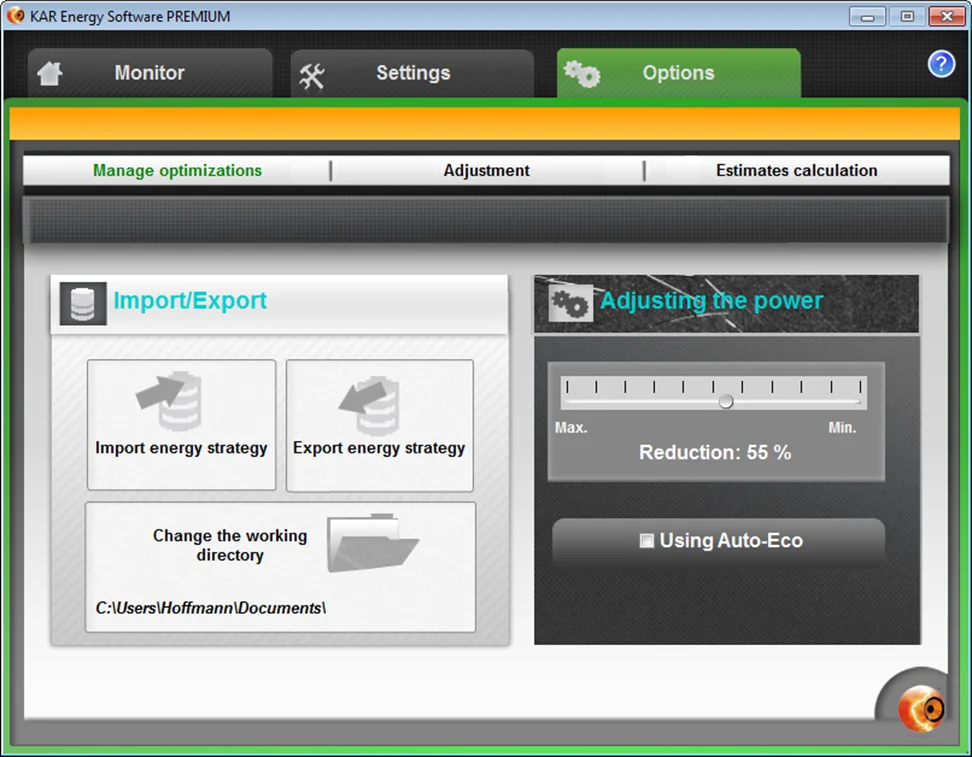
By leveraging dedicated management software, organizations can dynamically optimize power consumption based on real-world usage patterns. Implementing KAR Energy Software provides automated control over processor states, process locks, and idle sleep execution. Independent testing demonstrates that KAR Energy Software can cut a PC's electricity use by up to 48% by dynamically reducing processor frequency during idle states and enforcing clean transitions into low-power sleep modes.
When planning hardware refreshes alongside software energy policies, system administrators can also combine standby reduction with battery lifecycle optimization—see our guide to keep a Windows laptop battery healthy—to maximize fleet longevity and infrastructure ROI.
Troubleshooting Persistent Wake Events and Driver-Level Wake Locks
A frequent challenge when implementing aggressive sleep policies is dealing with unexpected wake events, which leave workstations running at active power levels overnight. Isolating and remediating these wake locks requires systematic command-line diagnostics.
Auditing Active System Wake Locks
When a computer refuses to enter or stay in sleep mode, execute the following command in an elevated prompt to list active locks holding the system awake:
powercfg /requestsThe diagnostic output organizes wake locks into five distinct structural areas:
- DISPLAY: Applications holding display power active (e.g., video conferencing tools or browser elements).
- SYSTEM: Kernel drivers or active system processes blocking sleep (e.g., background indexing, audio output streams, or active file transfers).
- AWAYMODE: Applications keeping processing active while simulating a shut-off state.
- EXECUTION: Direct process execution locks generated by running scripts or setup software.
- PERFBOOST: Performance management drivers maintaining elevated CPU core frequencies.
Revoking Hardware Device Wake Privileges
Connected peripherals—such as network controllers, mice, and keyboards—frequently send unintentional wake interrupts to the central processor. Query all hardware controllers authorized to wake the machine by executing:
powercfg /devicequery wake_armedTo revoke wake permissions for a problematic peripheral (such as an over-sensitive network adapter or input device), run:
powercfg /devicedisablewake "Intel(R) Ethernet Connection I219-LM"Configuring Network Adapter Power Flags
Network interface cards configured to wake on general pattern matches will wake the workstation whenever network broadcast traffic hits the machine. To reconfigure network adapter wake rules in Windows:
- Open Device Manager (
devmgmt.msc). - Expand Network Adapters, right-click the active Ethernet interface, and select Properties.
- Select the Power Management tab.
- Check Only allow a magic packet to wake the computer.
- Under the Advanced tab, set Wake on Pattern Match to Disabled.
Step-by-Step Implementation Protocol for Work and Home
- Perform Physical Baseline Measurement: Use a True-RMS wattmeter to log actual power draw across Active Idle, S3/S0ix Sleep, S4 Hibernation, and S5 Soft Off states.
- Enable Firmware ErP/EuP Modes: Access UEFI configuration menus on desktop hardware to set ErP/EuP to Enabled (S4+S5), turning off non-essential 5VSB power rails.
- Remediate Wake Locks: Run
powercfg /requestsandpowercfg /devicequery wake_armedto identify and disable unwanted wake triggers. - Configure OS Power Settings: Set short screen-off timers (5–10 minutes), enforce S4 Hibernation after 20–30 minutes of inactivity, and enable PCI Express ASPM (State 2).
- Deploy Automated Power Software: Install intelligent power management software across endpoints to dynamically scale CPU power demands and maintain energy compliance.
Frequently Asked Questions
Why does a desktop PC draw power even when turned completely off?
When turned off (ACPI S5 state), desktop power supplies maintain an active 5-volt standby (5VSB) power rail. This rail feeds motherboard circuitry responsible for monitoring the power button, Wake-on-LAN commands, real-time clock triggers, and powered USB ports. Enabling ErP/EuP settings in the motherboard BIOS cuts power to these circuits, dropping S5 draw below 0.5W.
Is Windows Hibernation better for energy savings than standard Sleep?
Yes. Traditional Sleep (S3) keeps volatile system RAM continuously powered using self-refresh cycles, drawing between 1.5W and 4.5W from the wall. Hibernation (S4) saves the active system RAM image to non-volatile storage (NVMe/SSD) and completely powers down memory modules, lowering system draw to near-zero levels (0.2W to 1.2W).
How does Modern Standby (S0ix) impact office PC electricity costs?
Modern Standby keeps network interfaces active and permits background application updates while the screen is off. If background applications or unoptimized hardware drivers prevent the processor from dropping into deep CPU C-states (C8–C10), Modern Standby can pull 8W to 15W continuously, leading to elevated office electricity bills compared to standard S3 sleep or S4 hibernation.
How can I prevent random network traffic from waking up sleeping computers?
Open Device Manager, navigate to Network Adapters, open the Properties window for your active network interface, and select the Power Management tab. Ensure 'Only allow a magic packet to wake the computer' is checked. In the Advanced tab, set 'Wake on Pattern Match' to Disabled. This stops general network broadcast packets from triggering wake events.
KAR Energy Software
Cut your PC and server power draw by up to 48% with intelligent automated energy management.
Explore KAR Energy Software →